CRM alerts: Telegram (overseas) and DingTalk (China)
After you sign in to Reguverse CRM, you can still get short alerts when the tab is closed. The channel depends on where you work:
| Where you are | How you get alerts | Who sets it up |
|---|---|---|
| Overseas (team or client login) | Personal Telegram via official bot @reguversebot | You bind it in the sidebar |
| Clients in China | That client's DingTalk group | The CRO adds the group bot on the client page. Clients do not bind a bot themselves |
Alerts are a short summary plus a link into CRM. Full confidential message text is never pushed.
Overseas: bind Telegram
This takes about a minute. Use the Telegram app or Telegram Web.
Sign in to Telegram Web first
If you will finish linking in Telegram Web, open it and sign in before you tap Bind in CRM. The bind link often fails if you are not signed in yet. The mobile app does not need this step.
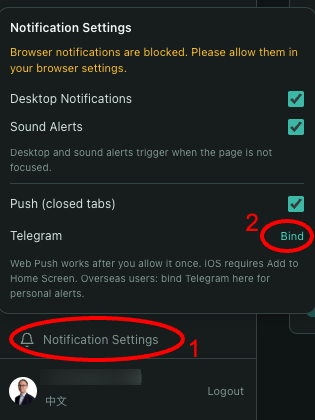
Step 1: Open Notification Settings and tap Bind
- At the bottom-left of CRM, open Notification Settings (bell).
- Find Telegram and tap Bind on the right.
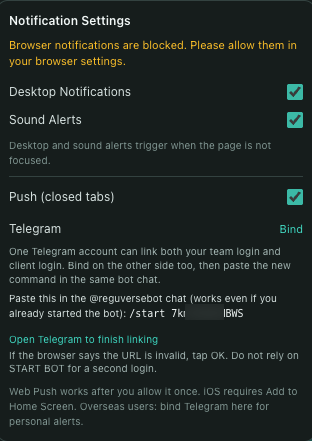
Step 2: Open Telegram and send /start
Tap Open Telegram to finish linking. In most cases, open the bot chat and tap START, or type /start and send it.
No extra code after /start: this Telegram is linking one CRM login only. Tap START or type /start. Do not paste anything else.
A code after /start (personal command): this appears only when more than one CRM login shares the same Telegram (for example team login and client portal). Paste the full command into the same bot chat. Do not tap START only.
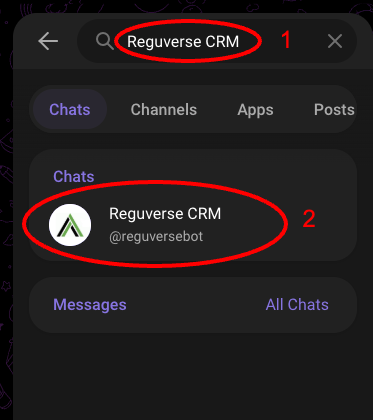
Step 3: If the bind link does not open in Telegram Web, search for the bot
If you cannot open the bind link (for example the browser says the URL is invalid), do not keep retrying it. Open Telegram, search for Reguverse CRM, tap Reguverse CRM (the username must be @reguversebot), then continue with START below.
Step 4: Open the bot
On the bot profile:
- Mobile app: tap START BOT
- Telegram Web: you can tap OPEN IN WEB
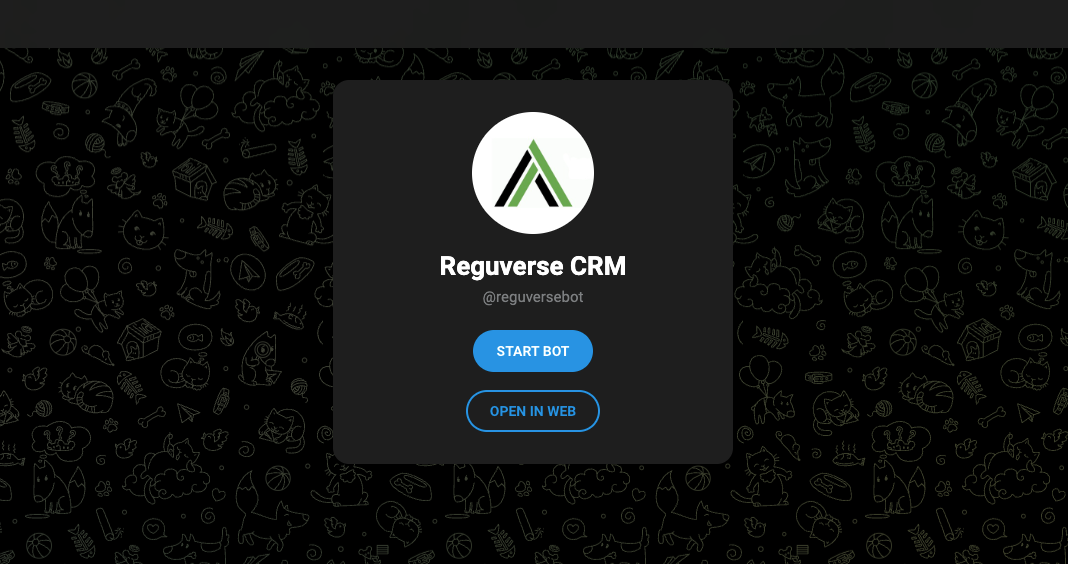
Step 5: Tap START, or type /start
If the chat is empty, tap START at the bottom. For a single CRM login, that is enough.
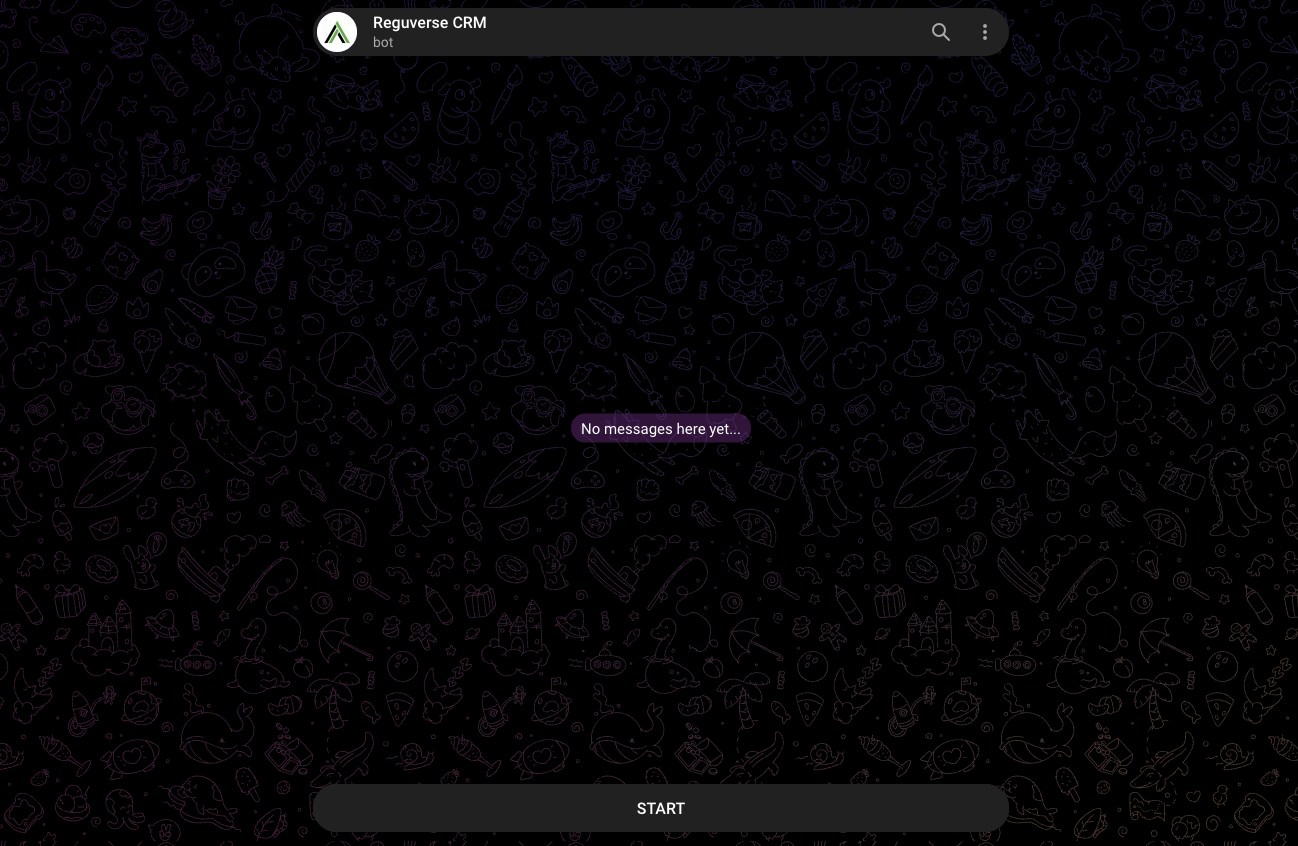
Step 6: Wait for confirmation (personal command only for multiple logins)
Single login: after START, the bot confirms you are linked.
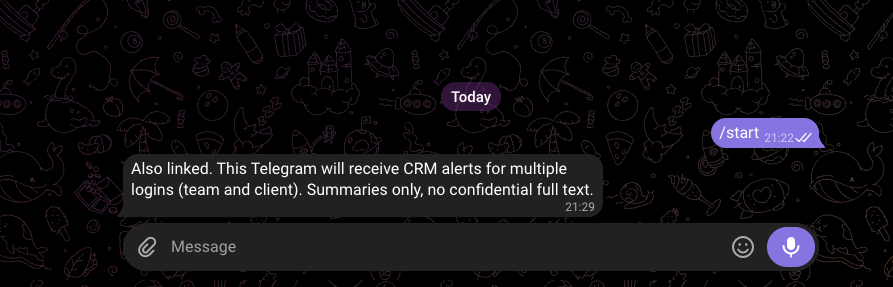
Several CRM logins on the same Telegram: paste the full /start ... command from Step 2. A reply like Also linked... means this Telegram will get alerts for more than one login, tagged [CRO] or [Client portal].
China: the CRO adds a DingTalk group
Clients in China usually do not bind Telegram.
The CRO opens that client's client detail page and pastes the DingTalk custom-robot webhook and sign secret for that client's group (one group per client, not per project). Public-channel messages for that client's projects go to this group.
If client colleagues need the alerts, the CRO adds them to the DingTalk group.
Related
- Desktop notifications, sound, and Web Push (closed tabs) are in the same Notification Settings panel.
- How Assistant and CRM relate: Assistant vs CRM.