Full-text Appraisal (Step 7)
INFO
The current Step-by-step operating guide is maintained in Chinese. Read Step 7 after the overview. English translation will follow after that text is confirmed.
Overview
Step 7 performs full-text quality appraisal of literature screened as "Relevant" in Step 4, using systematic scoring based on IMDRF clinical evaluation guidance and MDCG evidence grading criteria.
Scoring System
Four-dimension Quality Scoring
Each article is scored across four dimensions, 1-3 points each:
| Dimension | Description | Score |
|---|---|---|
| Design (D) | Study design quality | 1-3 |
| Applicability (A) | Applicability to target device | 1-3 |
| Population (P) | Study population relevance | 1-3 |
| Reporting (R) | Completeness of result reporting | 1-3 |
| Total (SUM) | Composite score | 4-12 |
SOTA Assessment
In addition to the four-dimension scoring, each article undergoes a State of the Art (SOTA) assessment to determine whether the literature reflects current best practices and clinical standards.
Contribution Assessment
Evaluates each article's contribution to clinical evaluation conclusions:
- Contribution to safety argumentation
- Contribution to effectiveness argumentation
- Contribution to benefit-risk evaluation
Ethical Contraindications (Optional)
Same as Step 4 -- if the target indication has ethical constraints preventing RCTs, enable "Ethical Contraindications". When enabled, scoring adjusts requirements for study design level and does not penalize articles for lacking RCT evidence.
Batch Processing
Step 7 also uses batch processing:
- Each batch appraises a group of articles
- Auto-continue mode runs sequentially
- Can pause for manual batch review
- All batch results merge on completion
Output
Each article's appraisal includes:
- Four-dimension scores (D/A/P/R) and composite score
- SOTA assessment conclusion
- Contribution evaluation
- Key findings summary
- Methodological limitations
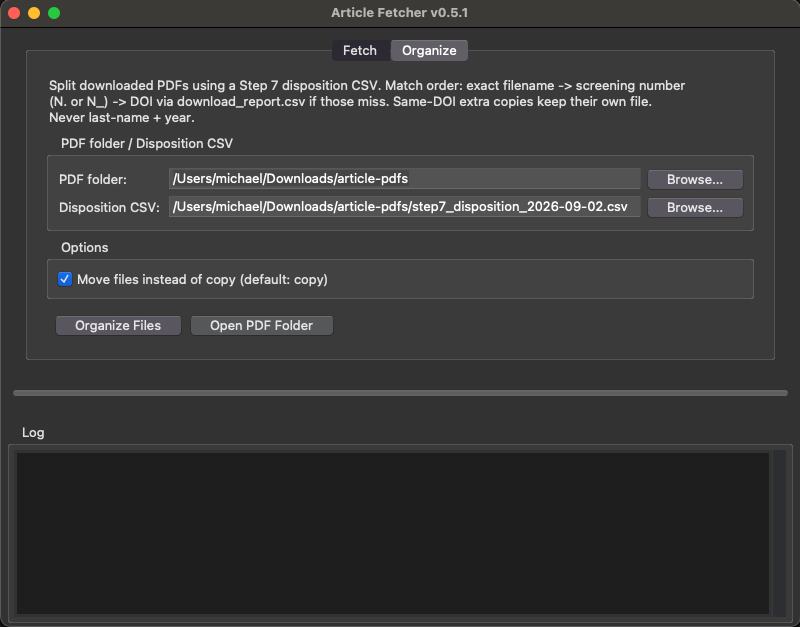
Split PDFs with ArticleFetcher Organize
After appraisal, Export list writes a CSV that ArticleFetcher Organize uses to copy (or move) PDFs into included and excluded folders.
Use v0.5.1 or later. Download from the links below, from Step 4, or from the assistant Step 4 toolbar; or use a latest copy you already downloaded. Older builds have no Organize tab and cannot honour DuplicateOf for extra PDFs that share a DOI.
Download ArticleFetcher v0.5.1:
- Windows: China · International
- macOS: China · International
- On the Step 7 summary, click Export list to get
step7_disposition_DATE.csv. - Open ArticleFetcher and switch to the Organize tab.
- PDF folder: the folder where Fetch saved the PDFs.
- Disposition CSV: the list you just exported.
- Default is copy (originals stay put). Check Move files instead of copy only if you want files relocated.
- Click Organize Files. Then check:
Included/— included full textsExcluded/— excluded full textsUnmatched/— rows that did not match a file, plusorganize_report.csv
Match order: exact filename → screening number (N. or N_) → DOI via download_report.csv if those miss. Extra copies of the same DOI keep their own file. Matching never uses last name + year.